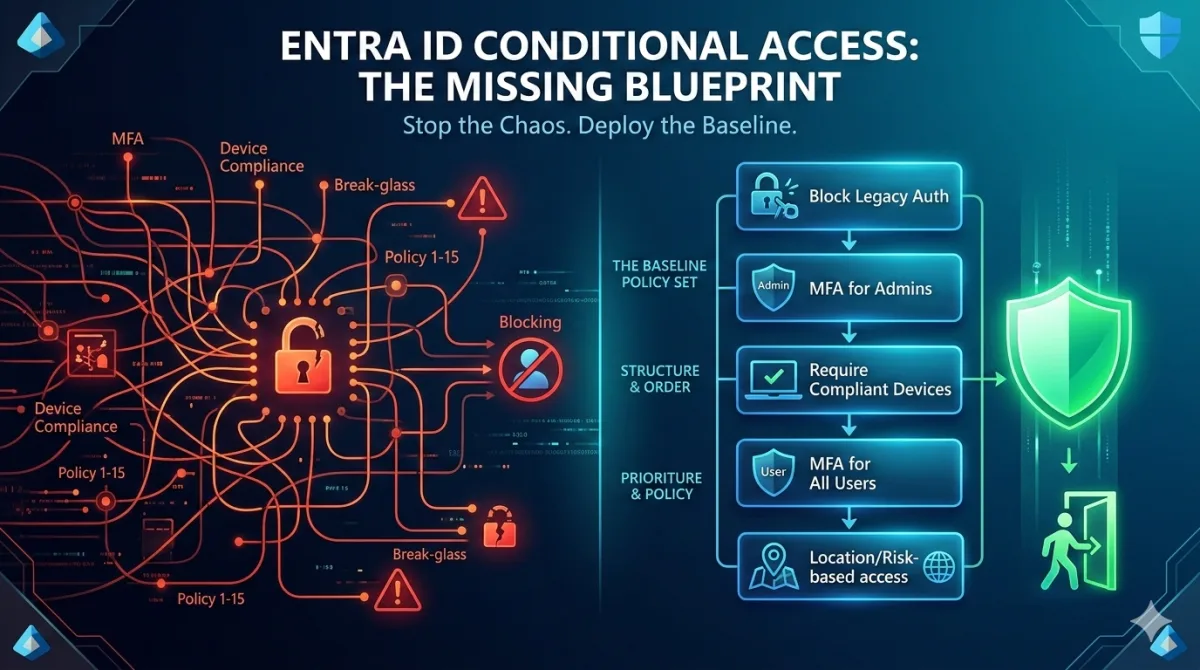

Conditional Access Policies That Actually Work
A baseline Conditional Access policy set built from 20 deployments: common mistakes, circular dependencies, and the patterns that survive production.
Conditional Access is the most powerful and most misconfigured feature in Entra ID. Every Microsoft 365 tenant I've assessed has had at least one policy that was either doing nothing, actively blocking legitimate users, or creating a false sense of security by protecting the wrong things in the wrong order.
The documentation is fine. Microsoft's tutorials walk you through creating individual policies, one at a time, with screenshots. What they don't tell you is how those policies interact when you have fifteen of them, what happens when you combine device compliance with MFA registration requirements, or why your break-glass accounts stopped working at 2am on a Sunday.
This post is the baseline policy set I deploy to every new tenant and retrofit into existing ones. It's built from the mistakes I've seen and made, across many deployments. Not every policy will apply to every organisation, but the architecture and the ordering will save you from the problems that catch everyone else.
Every policy in this post is defined as JSON, the native format for the Microsoft Graph Conditional Access API. These aren't pseudocode or portal screenshots; they're the request bodies you pass to
New-MgIdentityConditionalAccessPolicy(or POST to/identity/conditionalAccess/policiesdirectly). You can deploy them from PowerShell, import them into Microsoft 365 DSC, or store them in a Git repository and deploy via a CI/CD pipeline. If you're new to working with Graph API programmatically, the Graph API for Architects post covers the wider set of endpoints, authentication setup, and PowerShell patterns. If you're already running a Configuration as Code practice for your M365 tenant, or want to start, the Configuration as Code for Endpoint Management post covers the broader approach. CA policies are one of the highest-value targets for that pattern: they're critical, they drift, and portal-based management gives you no change history.
How Conditional Access actually works
Before building policies, you need to understand how Entra ID evaluates them because the mental model most admins have is wrong.
Conditional Access is not a firewall rule set evaluated top-to-bottom. There's no priority ordering. Entra ID evaluates every enabled policy against every sign-in, simultaneously. If a sign-in matches the assignments of multiple policies, all matching grant controls must be satisfied. If any matching policy blocks access, the block wins regardless of what other policies allow.
This means:
- Block always wins. A single matching Block policy overrides any number of Allow policies with grant controls. This is by design, but it's the number one cause of "I locked myself out" incidents.
- Grant controls stack. If Policy A requires MFA and Policy B requires a compliant device, and both match the same sign-in, the user must satisfy both MFA and compliant device. This is the "require all" default behaviour.
- Assignments are AND logic, and controls are too. A policy applies when the user, the app and the condition all match. Once it applies, the user must satisfy control A and control B, unless you explicitly set "require one of the selected controls".
- Report-only doesn't enforce. Policies in report-only mode are evaluated but not enforced. They log what would have happened. Use this before enabling anything.
The practical consequence is that you must think about your policies as a set, not as individual rules. A policy that looks perfectly reasonable in isolation can create deadlocks, coverage gaps, or admin lockouts when combined with others.
The five mistakes I see everywhere
1. No break-glass exclusion, or a broken one
Every CA policy must exclude at least two break-glass accounts. Everyone agrees with this, and half of organisations still get it wrong.
The common failures:
- Break-glass accounts exist but aren't excluded from every policy. Someone creates a new policy six months later and forgets to add the exclusion, and the next time all other admin access fails, the break-glass accounts are locked out too.
- Break-glass accounts use SMS MFA. If your CA policies require MFA, and the break-glass account's MFA method is a phone number tied to someone who left the company, you have a break-glass account that can't break glass.
- Break-glass accounts aren't monitored. An unmonitored break-glass account is an unaudited privileged identity sitting in your tenant with no MFA requirement. If you exclude it from every CA policy, you need to alert on every sign-in it makes.
The fix is structural, not procedural. Use a dedicated security group, which I call CA-Exclude-BreakGlass, and exclude that group from every policy. Then monitor it:
# Create the break-glass exclusion group
$bgGroup = New-MgGroup -DisplayName "CA-Exclude-BreakGlass" `
    -MailEnabled:$false -SecurityEnabled:$true -MailNickname "ca-exclude-breakglass" `
    -Description "Break-glass accounts excluded from all CA policies. Monitored via alert rule."

# Add break-glass accounts
$bg1 = Get-MgUser -Filter "userPrincipalName eq '[email protected]'"
$bg2 = Get-MgUser -Filter "userPrincipalName eq '[email protected]'"

New-MgGroupMember -GroupId $bgGroup.Id -DirectoryObjectId $bg1.Id
New-MgGroupMember -GroupId $bgGroup.Id -DirectoryObjectId $bg2.Id
For monitoring, create a Log Analytics alert rule that fires on any sign-in from these accounts:
SigninLogs
| where UserPrincipalName in ("[email protected]", "[email protected]")
| where ResultType == 0
| project TimeGenerated, UserPrincipalName, AppDisplayName, IPAddress, Location
Break-glass accounts need FIDO2 security keys, not passwords with SMS MFA. Store one key in a physical safe at your office, and give the other to a trusted senior leader. I often hear that this is not practical, and that's the point. A break-glass account isn't supposed to be practical. It's a 'save my butt' account. The accounts should be cloud-only, with no on-premises sync, and use an
*.onmicrosoft.comUPN so they work even if your custom domain has issues. Assign the Global Administrator role as an active permanent PIM assignment, not eligible. Document the procedure for using the accounts, test it quarterly, and treat a failed test as a P1 incident.
2. Blocking legacy authentication too late
Legacy authentication protocols, POP, IMAP, SMTP AUTH and ActiveSync with basic auth, don't support MFA. Any policy that requires MFA is silently bypassed by a legacy auth client. If you don't block legacy auth explicitly, your MFA requirement has a hole in it wide enough to drive a credential-stuffing attack through.
Microsoft disabled Basic authentication in every tenant for Exchange ActiveSync, POP, IMAP, Remote PowerShell, Exchange Web Services, the offline address book, Autodiscover and Outlook, and nobody, not even Microsoft support, can turn it back on. Microsoft also disabled SMTP AUTH in every tenant that wasn't already using it, so SMTP AUTH with basic auth can still be live where it was in use before. The CA policy below is still worth deploying as defence in depth against non-Exchange legacy clients and against that surviving SMTP AUTH case:
{
  "displayName": "BASELINE - Block legacy authentication",
  "state": "enabled",
  "conditions": {
    "users": {
      "includeUsers": ["All"],
      "excludeGroups": ["<CA-Exclude-BreakGlass-GroupId>"]
    },
    "applications": {
      "includeApplications": ["All"]
    },
    "clientAppTypes": [
      "exchangeActiveSync",
      "other"
    ]
  },
  "grantControls": {
    "operator": "OR",
    "builtInControls": ["block"]
  }
}
Deploy this in report-only first. In most tenants, what turns up is a printer or scanner using SMTP AUTH with basic auth to send scanned documents through Exchange Online, because nobody moved it to OAuth. Fix that, then enforce.
3. MFA for "all users" doesn't mean all users
The "Require MFA for all users" policy sounds like it covers everyone, until you look at the exclusions list six months after deployment. It typically includes:
- Service accounts (because someone couldn't figure out managed identities)
- A specific department (because they complained)
- Guest users (because "they have their own MFA")
- The entire IT team (because "we're testing something")
Each exclusion is a gap. Service accounts without MFA are the most common initial access vector in Entra ID compromises. Guest users from federated organisations may have MFA in their home tenant, or they may not, and you're trusting their security posture without verifying it.
The correct approach is MFA for genuinely all users, with the only exclusion being the break-glass group. Move service accounts to workload identities, authenticating with app-only auth, the client credentials flow, instead of a username and password. Managed identities stay outside Conditional Access entirely, and Microsoft and third-party multitenant apps aren't covered either. A single-tenant service principal registered in your own tenant is different: with a Workload Identities Premium licence, Conditional Access can apply to it directly. You should still move a service account off username-and-password authentication regardless of licence, because it removes the password and the MFA gap that a user-style service account carries. If a service account authenticates as a user, it needs MFA, or you need to re-architect it so it doesn't.
The same property has a less comfortable consequence. An application a user has consented to also holds an app-only token, which means it can read your entire directory without any CA policy ever evaluating the request. Your Directory Is the Attack Map works through that route and what actually closes it.
4. The device compliance circular dependency
This one catches everyone at least once. The scenario:
- You create a CA policy requiring a compliant device for all cloud apps.
- A user gets a new device and tries to enrol it in Intune.
- Intune enrolment requires authenticating to Entra ID.
- Entra ID blocks the authentication because the device isn't compliant yet.
- The device can never become compliant because it can never enrol.
The fix is to exclude the enrolment apps from the compliance requirement: Microsoft Intune Enrollment (app ID d4ebce55-015a-49b5-a083-c84d1797ae8c), Microsoft Intune (app ID 0000000a-0000-0000-c000-000000000000), and Microsoft Intune Company Portal (app ID 9ba1a5c7-f17a-4de9-a1f1-6178c8d51223) from any CA policy that requires device compliance. The Company Portal is how users on iOS and Android actually start enrolment; miss it and mobile enrolment silently fails. You may also need to exclude Microsoft Authenticator if you're using it for MFA registration during enrolment.
{
  "displayName": "BASELINE - Require compliant device (all cloud apps)",
  "state": "enabledForReportingButNotEnforced",
  "conditions": {
    "users": {
      "includeUsers": ["All"],
      "excludeGroups": ["<CA-Exclude-BreakGlass-GroupId>"]
    },
    "applications": {
      "includeApplications": ["All"],
      "excludeApplications": [
        "d4ebce55-015a-49b5-a083-c84d1797ae8c",
        "0000000a-0000-0000-c000-000000000000",
        "9ba1a5c7-f17a-4de9-a1f1-6178c8d51223"
      ]
    },
    "platforms": {
      "includePlatforms": ["iOS", "android"]
    }
  },
  "grantControls": {
    "operator": "OR",
    "builtInControls": ["compliantDevice"]
  }
}
Even in report-only mode, this policy has one sting: it can prompt users on macOS, iOS and Android to select a device certificate, and it can keep prompting until the device becomes compliant, even though nothing is actually being enforced yet. Microsoft's advice is to exclude those platforms from a report-only compliance policy, and add them back only once you promote it to enabled.
Also check your exclusions against a change Microsoft is rolling out from 15 June 2026: sign-ins that request only baseline scopes are now evaluated as directory access, and can be caught by an "all resources" policy even where that policy excludes the requesting app. Revisit the exclusions in this policy, and any other all-resources policy with exclusions, against that change before you rely on them.
Requiring device compliance across every platform on day one is ambitious. Start with iOS and Android, where Intune enrolment is mature and users already expect managed devices, then extend to Windows once your Autopilot and compliance policy baseline is solid. Do everything at once and you end up with fifty exclusions and a policy that means nothing.
5. No named locations, or wrong ones
Named locations underpin several important policies: blocking sign-ins from specific countries, reducing friction for users on corporate networks, and requiring stricter controls for external access. The portal renamed the condition that references them, from Location to Network, though named locations keep their own name and any policy built on Location keeps working unchanged. The locations themselves are often misconfigured:
- Using IP ranges that are too broad. A
/16that was "our corporate range" five years ago now includes subnets that have been reassigned. Users in a co-working space on a different floor are treated as "corporate." - Not marking locations as trusted. A named location that isn't marked as trusted is just a label. It doesn't affect MFA behaviour or risk scoring.
- Relying solely on IP-based locations. With remote work, IP-based trusted locations are less meaningful. Consider GPS-based named locations, or a compliant network check through Global Secure Access, if you need location-aware policies that work for a distributed workforce.
The baseline policy set
Here's the complete set I deploy to every tenant, in the order they should be created and enabled. Each policy is named with a prefix that indicates its layer.
Foundation layer
These four policies are non-negotiable. They go in first, and they protect the tenant from the most common attack vectors.
| # | Policy Name | Assignments | Controls |
|---|---|---|---|
| 1 | BASELINE - Block legacy authentication | All users, all apps, legacy client types | Block |
| 2 | BASELINE - Require MFA for all users | All users, all apps, modern auth only | Require MFA |
| 3 | BASELINE - Block high-risk sign-ins | All users, all apps, sign-in risk: high | Block |
| 4 | BASELINE - Block high-risk users | All users, all apps, user risk: high | Block |
Policies 3 and 4 require Entra ID P2, or the equivalent through Microsoft 365 E5. Without P2, replace them with location-based blocking and stronger session controls, but budget for P2. Risk-based policies are the highest-value CA feature, and you can't replicate them manually.
Identity protection layer
These policies add context-aware controls that reduce friction for low-risk scenarios while tightening controls for higher-risk ones.
| # | Policy Name | Assignments | Controls |
|---|---|---|---|
| 5 | IDENTITY - Require MFA registration from trusted network | All users, user action: register security info, exclude trusted locations | Block (forces registration on-network) |
| 6 | IDENTITY - Require password change for medium-risk users | All users, user risk: medium | Require password change + MFA |
| 7 | IDENTITY - Block sign-ins from restricted countries | All users, all apps, locations: blocked country list | Block |
| 8 | IDENTITY - Require compliant device (mobile) | All users, all apps (excl. enrolment), iOS + Android | Require compliant device |
Policy 5 deserves explanation. By blocking MFA registration from non-trusted locations, you prevent an attacker who has stolen a password from registering their own MFA method. The user must be on the corporate network (or VPN) to set up Authenticator. This is one of the most effective anti-phishing controls you can deploy and it's routinely overlooked.
Data protection layer
These policies protect data at the application and session level. They control what happens after authentication, not just whether it succeeds.
| # | Policy Name | Assignments | Controls |
|---|---|---|---|
| 9 | DATA - Require app protection policy (mobile) | All users, Office 365 apps, iOS + Android | Require app protection policy |
| 10 | DATA - Block download from unmanaged devices | All users, Office 365 apps, filter: unmanaged devices | Session: use app-enforced restrictions |
| 11 | DATA - Require ToU for guest access | Guest users, all apps | Require terms of use |
| 12 | DATA - Sign-in frequency for sensitive apps | All users, sensitive app list | Session: sign-in frequency 4 hours |
Policy 10 uses session controls rather than grant controls. It doesn't block access; it restricts what users can do. On an unmanaged device, they can view documents in the browser but can't download, print, or sync them. This is the right balance for BYOD, where blocking access outright would just drive users to shadow IT. I'll come back to BYOD in a future post; for now, session controls are the right tool when you don't have a fuller set of controls in place, but they do come at some cost to the user experience.
Admin protection layer
Privileged identities get their own policies because the risk profile is different. An attacker who compromises a Global Admin doesn't need to exfiltrate data. They own the tenant.
| # | Policy Name | Assignments | Controls |
|---|---|---|---|
| 13 | ADMIN - Require phishing-resistant MFA for admins | Directory roles: Global Administrator (GA), Privileged Authentication Administrator (PA), Security Administrator (SA), Exchange Administrator (EA), Helpdesk Administrator (HA), Conditional Access Administrator (CAA) | Require authentication strength: phishing-resistant |
| 14 | ADMIN - Require compliant device for admin portals | Directory roles (as above), Microsoft Admin Portals | Require compliant device |
| 15 | ADMIN - Block admin access from untrusted locations | Directory roles (as above), all apps, exclude trusted locations | Block |
| 16 | ADMIN - Re-auth every 4h for privileged roles | Directory roles (as above), all apps | Session: sign-in frequency 4 hours, persistent browser: disabled |
Policy 13 uses authentication strength, a CA feature, rather than the standard "require MFA" control. Authentication strength lets you specify which MFA methods are acceptable. The built-in Phishing-resistant MFA strength covers Windows Hello for Business or a platform credential, FIDO2 security keys, and Microsoft Entra certificate-based authentication with multifactor. Push notifications and SMS aren't on that list, and admin accounts are exactly the accounts that get phished.
Deploying the baseline via Graph API
The portal makes creating sixteen policies by hand tedious and error-prone. Use Graph API to deploy them consistently, and export them as JSON for version control.
Export existing policies
Before deploying anything, export the current state. This is your rollback snapshot.
# Connect with CA policy permissions
Connect-MgGraph -Scopes "Policy.Read.All","Policy.ReadWrite.ConditionalAccess"

# Export all CA policies to JSON
$policies = Get-MgIdentityConditionalAccessPolicy -All
$policies | ConvertTo-Json -Depth 10 | Out-File "ca-policies-backup-$(Get-Date -Format yyyyMMdd).json"

Write-Host "Exported $($policies.Count) policies"
Deploy a policy from JSON
Each policy in the baseline set can be deployed from a JSON definition. Here's the pattern:
# Read policy definition from JSON file
$policyJson = Get-Content "policies/baseline-block-legacy-auth.json" -Raw
$policyDef = $policyJson | ConvertFrom-Json

# Create the policy in report-only mode first (regardless of the JSON state)
$params = @{
    DisplayName   = $policyDef.displayName
    State         = "enabledForReportingButNotEnforced"
    Conditions    = $policyDef.conditions
    GrantControls = $policyDef.grantControls
}

if ($policyDef.sessionControls) {
    $params.SessionControls = $policyDef.sessionControls
}

$newPolicy = New-MgIdentityConditionalAccessPolicy -BodyParameter $params
Write-Host "Created policy: $($newPolicy.DisplayName) (ID: $($newPolicy.Id)) in report-only mode"
Always deploy in report-only first. Even if you've tested the policy in a lab tenant, deploy it in report-only mode in production and review the sign-in logs for at least a week before enforcing. Managers will tell you to go faster rather than waiting a week to see the results. Waiting a week stops you creating an incident with wide-reaching consequences. Hold the week, even if it looks good after four days. I speak from experience here.
The sign-in logs will show you every sign-in that would have been affected, including service accounts and automated processes you didn't know about.
Bulk deploy the full baseline
# Deploy all baseline policies from a directory of JSON files
$policyFiles = Get-ChildItem "policies/*.json"

foreach ($file in $policyFiles) {
    $policyDef = Get-Content $file.FullName -Raw | ConvertFrom-Json

    # Check if policy already exists (by display name)
    $existing = Get-MgIdentityConditionalAccessPolicy -Filter "displayName eq '$($policyDef.displayName)'"

    if ($existing) {
        Write-Host "SKIP: '$($policyDef.displayName)' already exists (ID: $($existing.Id))"
        continue
    }

    $params = @{
        DisplayName   = $policyDef.displayName
        State         = "enabledForReportingButNotEnforced"
        Conditions    = $policyDef.conditions
        GrantControls = $policyDef.grantControls
    }

    if ($policyDef.sessionControls) {
        $params.SessionControls = $policyDef.sessionControls
    }

    $newPolicy = New-MgIdentityConditionalAccessPolicy -BodyParameter $params
    Write-Host "CREATED: '$($newPolicy.DisplayName)' in report-only mode"
}
Promote from report-only to enabled
After validating in report-only, promote policies to enabled one layer at a time. Foundation first, then Identity Protection, then Data Protection, then Admin. Leave at least a week between layers.
# Enable a specific policy after validation
$policyName = "BASELINE - Block legacy authentication"
$policy = Get-MgIdentityConditionalAccessPolicy -Filter "displayName eq '$policyName'"

Update-MgIdentityConditionalAccessPolicy -ConditionalAccessPolicyId $policy.Id `
    -State "enabled"

Write-Host "Enabled: $policyName"
An opinion on CA policy management
Once you have a working baseline, the challenge shifts from creation to maintenance. Policies drift. People add exclusions to fix urgent problems and never remove them. New applications get deployed without considering which CA policies should apply to them.
Three practices keep the policy set honest:
- Review the exclusion groups quarterly. Every group that appears in a CA policy exclusion should have an access review. If someone was added to a "CA-Exclude-ComplianceBypass" group six months ago to work around a device issue, and the issue is now resolved, remove the exclusion. Automate this with Entra ID Access Reviews.
- Name policies for readability, not cleverness. The naming convention in this post (
LAYER - Description) lets anyone looking at the policy list understand the architecture at a glance. Don't name policies after ticket numbers or project codes; name them after what they do. - Version control the JSON. Export your policies weekly to a Git repository and diff them. When a policy changes unexpectedly, you'll know exactly what changed and when. This is the same principle as Configuration as Code. Your security policy is configuration, and it deserves the same rigour as your infrastructure.
Testing CA policies without locking everyone out
The What If tool in the Entra portal is underused. Before enabling any policy, run What If scenarios for:
- A regular user on a managed device, on-network
- A regular user on an unmanaged device, off-network
- A guest user accessing SharePoint
- A service principal authenticating via app-only auth
- A break-glass account signing in from an unknown location
- An admin signing in to the Azure portal
Each scenario should produce the result you expect. If the break-glass account is blocked by any policy, stop. Your exclusion is wrong.
If you're already using Graph API for tenant assessment and automation, you can also automate What If via Graph:
# Simulate a sign-in scenario against CA policies
$params = @{
    signInIdentity = @{
        "@odata.type" = "#microsoft.graph.userSignIn"
        userId        = "<test-user-object-id>"
    }
    signInContext = @{
        "@odata.type"       = "#microsoft.graph.applicationContext"
        includeApplications = @("00000003-0000-0ff1-ce00-000000000000")  # SharePoint Online
    }
    signInConditions = @{
        clientAppType  = "browser"
        country        = "GB"
        ipAddress      = "203.0.113.50"
        devicePlatform = "windows"
    }
}

$result = Invoke-MgGraphRequest -Method POST `
    -Uri "https://graph.microsoft.com/v1.0/identity/conditionalAccess/evaluate" `
    -Body ($params | ConvertTo-Json -Depth 5)

$result.value | Select-Object displayName, result | Format-Table -AutoSize
The What If API is now GA in the v1.0 Graph endpoint (
/identity/conditionalAccess/evaluate). The schema has stabilised, so it's a reliable option for automated regression testing of your CA policies alongside the portal-based What If tool.
Where this goes next
This baseline covers the foundational controls: authentication, device posture, identity risk, and data protection. Combined with endpoint standardisation and a solid Configuration as Code pipeline, it forms the identity layer of a Zero Trust architecture. There are more advanced patterns that build on top of it:
- Token protection binds a token to the device it was issued to, so a stolen token can't be replayed from a different device. It covers only its supported resources, and Microsoft Graph isn't one of them.
- Continuous access evaluation, or CAE, enforces policy and risk changes in near real time, rather than waiting for the token to expire.
- Adaptive session controls adjust session length and persistence based on real-time risk signals.
- Cross-tenant access policies control how your CA policies treat sign-ins from external organisations in B2B scenarios.
Each of these deserves its own post. For now, deploy the baseline, validate it in report-only, promote it layer by layer, and monitor the sign-in logs. A well-configured sixteen-policy baseline will prevent more incidents than a hundred reactive rules added one at a time in response to problems.
The policies in this post set security defaults that work for most organisations. Your compliance requirements, user population and device management maturity will decide where you need to adjust. Start with the foundation layer and build up. Deploy all sixteen policies at once and you end up rolling everything back on day two. As with everything on this blog, these are examples. Validate all of it before you put it into production.
Get the next one by email
Long, specific write-ups on M365 architecture and security, worked out against real tenants rather than summarised from documentation. Sent rarely, and only when it is worth your time.