
Microsoft Graph API: Endpoints for Architects
Production-ready PowerShell scripts for M365 tenant assessment via Graph API: discovery, identity auditing, security posture, governance, licensing.
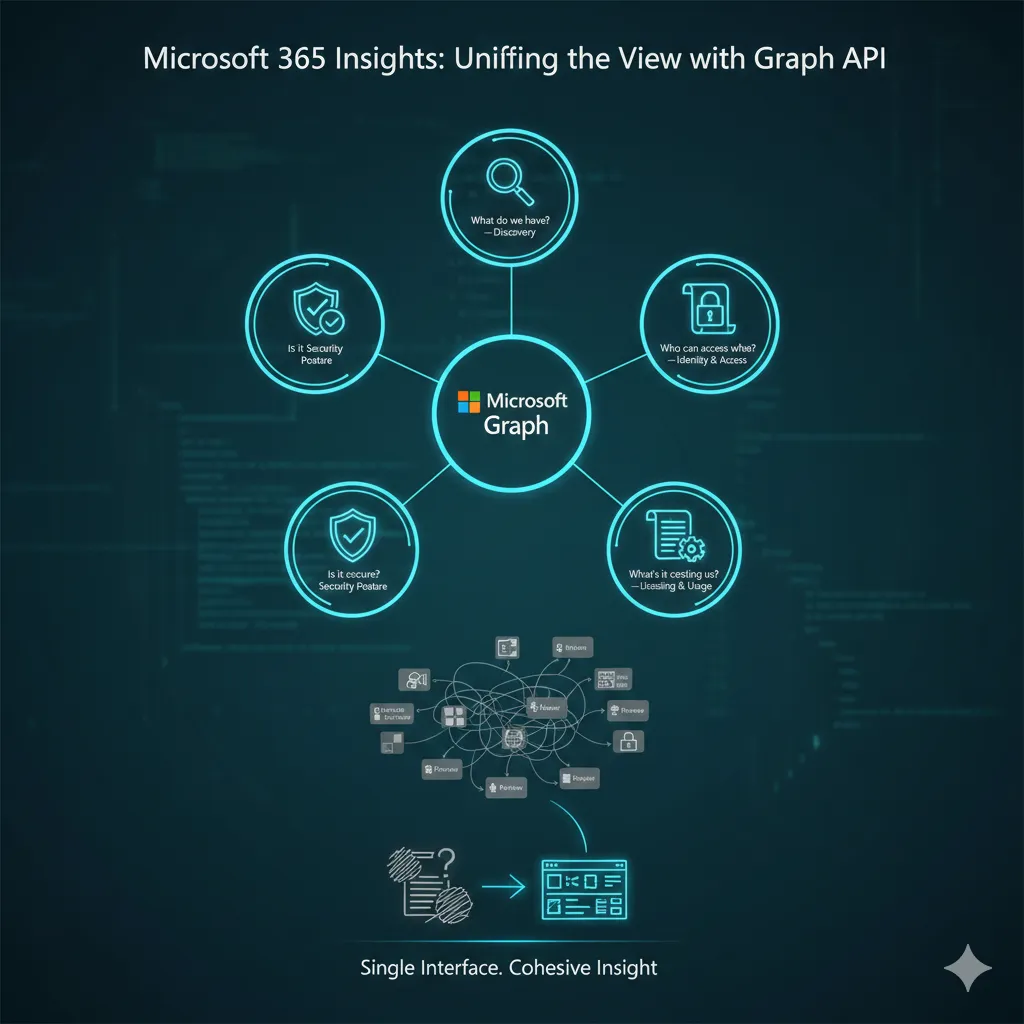
Every Microsoft 365 engagement I've worked starts with the same five questions:
| Question | Category |
|---|---|
| What do we have? | Discovery |
| Who can access what? | Identity and access |
| Is it secure? | Security posture |
| Is it compliant? | Governance |
| What's it costing us? | Licensing and usage |
The admin portals will give you partial answers to each of these, spread across half a dozen consoles, none of which talk to each other properly. You'll click through Entra, Intune, Defender, Purview, and the M365 Admin Centre, copying data into spreadsheets, trying to build a picture that should have taken twenty minutes but takes the better part of a day.
Graph API answers all five questions from a single interface. Developers use it to build integrations; architects use it to extract insight.
This post maps the Graph endpoints that matter for each of those five questions, with working PowerShell that produces deliverables you can hand to a client, a security team, or a board. Every script is concise for readability. The companion repository has production-ready versions with proper parameterisation and error handling.
All scripts use the Microsoft Graph PowerShell SDK v2.x and need PowerShell 7 or later. On Windows PowerShell 5.1 the SDK still works, but some syntax in these examples, notably the
??operator, doesn't.
Authentication setup
Set up authentication before mapping those endpoints. You need an Entra ID app registration with certificate-based auth. The minimum viable connection:
# App-only auth (certificate) - preferred for automation
Connect-MgGraph -ClientId $appId -TenantId $tenantId -CertificateThumbprint $thumbprint

# Or interactive auth for ad-hoc work (delegated)
Connect-MgGraph -Scopes "User.Read.All","Group.Read.All","Device.Read.All",
    "DeviceManagementManagedDevices.Read.All","DeviceManagementApps.Read.All",
    "Policy.Read.All","RoleManagement.Read.Directory","Application.Read.All",
    "Directory.Read.All","SecurityEvents.Read.All","SecurityAlert.Read.All",
    "AccessReview.Read.All","Reports.Read.All","AuditLog.Read.All",
    "LicenseAssignment.Read.All"
The scopes above cover everything in this post. Grant most of these as application permissions for app-only auth; they're all read-only, so nothing you grant here changes the tenant. One exception: LicenseAssignment.Read.All has no application form, so the licence detail call in the licensing section needs a delegated, signed-in session rather than the certificate or secret behind every other call in this post.
Discovery: what do we have?
The first thing any solution architect needs is the actual, ground-truth inventory of users, devices, groups, and applications, not the org chart version. The admin portals show you each of these in isolation. Graph lets you pull the lot in one pass.
Key endpoints
| Endpoint | Purpose | Architectural Value |
|---|---|---|
GET /users | Active, disabled, and guest users with licence and sign-in data | User scoping for design decisions |
GET /groups | Dynamic vs. assigned, M365 vs. security groups | Group strategy assessment |
GET /devices | Join type (Entra joined, hybrid, registered) and OS distribution | Device estate profiling |
GET /deviceManagement/managedDevices | Intune-enrolled devices with compliance state | Enrolment gap analysis |
GET /deviceAppManagement/mobileApps | Win32, MSIX and Store deployments (WinGet app data is beta only) | Application estate inventory |
GET /deviceManagement/detectedApps | Actually installed software across Intune-managed devices | Shadow IT detection |
The gap between /devices (Entra registered) and /deviceManagement/managedDevices (Intune enrolled) is one of the most useful things you can surface early in an engagement. Devices that appear in Entra but not in Intune are unmanaged, and in most environments, nobody knows how many there are until you count them.
Intune refreshes discovered apps per device rather than for the whole tenant at once. The exception is Win32 app data from the Intune Management Extension, which it collects every 24 hours. Microsoft's long-term direction is App inventory, which it positions as the replacement for Discovered apps.
Deliverable: one-page tenant summary
# Pull core counts
$users = Get-MgUser -All -Property "Id,UserType,AccountEnabled" -ConsistencyLevel eventual -CountVariable userCount
$groups = Get-MgGroup -All -Property "Id,GroupTypes,SecurityEnabled,MailEnabled"
$devices = Get-MgDevice -All -Property "Id,OperatingSystem,TrustType"
$managedDevices = Get-MgDeviceManagementManagedDevice -All -Property "Id,OperatingSystem,ComplianceState"

# User breakdown
$members = ($users | Where-Object { $_.UserType -eq "Member" }).Count
$guests = ($users | Where-Object { $_.UserType -eq "Guest" }).Count
$disabled = ($users | Where-Object { -not $_.AccountEnabled }).Count

# Group breakdown
$m365Groups = ($groups | Where-Object { $_.GroupTypes -contains "Unified" }).Count
$securityGroups = ($groups | Where-Object { $_.SecurityEnabled -and $_.GroupTypes -notcontains "Unified" }).Count
$dynamicGroups = ($groups | Where-Object { $_.GroupTypes -contains "DynamicMembership" }).Count

# Device breakdown
$entraJoined = ($devices | Where-Object { $_.TrustType -eq "AzureAd" }).Count
$hybridJoined = ($devices | Where-Object { $_.TrustType -eq "ServerAd" }).Count
$intuneEnrolled = $managedDevices.Count
$compliant = ($managedDevices | Where-Object { $_.ComplianceState -eq "compliant" }).Count

Write-Host "=== Tenant Summary ==="
Write-Host "Users: $($users.Count) (Members: $members, Guests: $guests, Disabled: $disabled)"
Write-Host "Groups: $($groups.Count) (M365: $m365Groups, Security: $securityGroups, Dynamic: $dynamicGroups)"
Write-Host "Entra Devices: $($devices.Count) (Entra Joined: $entraJoined, Hybrid: $hybridJoined)"
Write-Host "Intune Enrolled: $intuneEnrolled (Compliant: $compliant, Non-compliant: $($intuneEnrolled - $compliant))"
Write-Host "Entra-to-Intune gap: $($devices.Count - $intuneEnrolled) devices registered but not managed"
That last line, the Entra-to-Intune gap, is the number that gets stakeholder attention. In a recent 3,000-device estate, the gap was over 400 devices. Nobody had noticed because no single console shows the comparison.
Identity & access: who can access what?
This is where Graph's value over the admin portals becomes most apparent. Entra shows you Conditional Access policies one at a time. Graph lets you export them all, diff them, version-control them, and identify gaps programmatically.
Key endpoints
| Endpoint | Purpose | Architectural Value |
|---|---|---|
GET /identity/conditionalAccess/policies | All CA policies with state and controls | Baseline audit of enforcement |
GET /roleManagement/directory/roleAssignments | Entra directory role assignments | Privileged access review |
GET /servicePrincipals | App registrations with permissions | Application permission audit |
GET /oauth2PermissionGrants | Delegated permission grants (user consent) | Consent sprawl analysis |
Deliverable: Conditional Access policy export
$policies = Get-MgIdentityConditionalAccessPolicy -All

# Summary analysis
$enabled = ($policies | Where-Object { $_.State -eq "enabled" }).Count
$reportOnly = ($policies | Where-Object { $_.State -eq "enabledForReportingButNotEnforced" }).Count
$disabled = ($policies | Where-Object { $_.State -eq "disabled" }).Count

Write-Host "CA Policies: $($policies.Count) (Enabled: $enabled, Report-Only: $reportOnly, Disabled: $disabled)"

# Flag policies with broad exclusions
$broadExclusions = $policies | Where-Object {
    $_.Conditions.Users.ExcludeGroups.Count -gt 0 -or
    $_.Conditions.Users.ExcludeUsers.Count -gt 3
} | Select-Object DisplayName, State,
    @{Name="ExcludedUsers"; Expression={$_.Conditions.Users.ExcludeUsers.Count}},
    @{Name="ExcludedGroups"; Expression={$_.Conditions.Users.ExcludeGroups.Count}}

if ($broadExclusions) {
    Write-Host "`nPolicies with broad exclusions (review these):"
    $broadExclusions | Format-Table -AutoSize
}

# Export full policy set to JSON for version control
$policies | ConvertTo-Json -Depth 10 | Out-File "ca-policies-export.json"
Write-Host "`nFull policy export written to ca-policies-export.json"
The exclusion analysis is the most operationally useful part of this. Every CA environment I've audited has at least one policy where an exclusion group has quietly grown to include half the organisation, typically because someone added users to the exclusion "temporarily" and the removal never happened.
An opinion on CA policy management
Conditional Access policies belong in Git, managed as code, deployed via pipeline and reviewed via pull request. Exporting them once for documentation isn't enough. The portal works for prototyping a single policy, but managing thirty of them across multiple tenants needs something better.
Put them under version control, diff them between tenants, and deploy them through CI/CD. The JSON export above is the first step. If you're managing Intune configuration as code (which is covered here), extending the same approach to CA policies is a natural progression. If you're not doing either yet, CA policies are a good place to start: smaller surface area than Intune, higher impact.
Privileged access review
# Get all active directory role assignments and resolve role definitions
$roleAssignments = Get-MgRoleManagementDirectoryRoleAssignment -All
$roleDefinitions = Get-MgRoleManagementDirectoryRoleDefinition -All

# Build a clean summary - resolve principal display names via the directory
$privilegedUsers = foreach ($ra in $roleAssignments) {
    $roleDef = $roleDefinitions | Where-Object { $_.Id -eq $ra.RoleDefinitionId }
    $principal = Get-MgDirectoryObject -DirectoryObjectId $ra.PrincipalId
    [PSCustomObject]@{
        Role          = $roleDef.DisplayName
        Principal     = $principal.AdditionalProperties.displayName
        PrincipalType = $principal.AdditionalProperties.'@odata.type' -replace '#microsoft.graph.',''
    }
}

# Flag Global Admins specifically
$globalAdmins = $privilegedUsers | Where-Object { $_.Role -eq "Global Administrator" }
Write-Host "Global Administrators: $($globalAdmins.Count)"
$globalAdmins | Format-Table Principal, PrincipalType -AutoSize

# Count assignments by role
$privilegedUsers | Group-Object Role | Sort-Object Count -Descending |
    Select-Object @{Name="Role";Expression={$_.Name}}, Count |
    Format-Table -AutoSize
The number of Global Administrators is the headline metric here. Microsoft recommends no fewer than two (for break-glass emergency access) and fewer than five, ideally managed through PIM with just-in-time activation rather than permanent assignments. I've seen tenants with thirty permanent Global Admins. When you pull this data via Graph rather than clicking through Entra, the scale of the problem becomes immediately visible.
A default member account can run this same query. That makes the privileged role review above reconnaissance too, seen from an attacker's point of view. What a stock tenant lets an ordinary account enumerate covers how to narrow it, and is the subject of its own post.
Security posture: is it secure?
Microsoft Secure Score is imperfect. It conflates control implementation with actual security, and some of its recommendations are outright wrong for certain environments. But it's the closest thing to a standardised posture metric across M365, and it's the number boards and auditors will ask about. You need to work with it even if you don't love it.
Key endpoints
| Endpoint | Purpose | Architectural Value |
|---|---|---|
GET /security/secureScores | Secure Score history | Board-reportable posture timeline |
GET /security/secureScores/{id} | Per-control score breakdown, in the response's controlScores property | Improvement prioritisation |
GET /deviceManagement/managedDevices | Managed devices with compliance state and sync times | Non-compliance identification |
GET /security/alerts_v2 | Defender alerts and incidents | Security incident overview |
Deliverable: top improvement actions
# Get latest Secure Score
$latest = Get-MgSecuritySecureScore -Top 1 |
    Sort-Object -Property CreatedDateTime -Descending |
    Select-Object -First 1

Write-Host "Current Secure Score: $($latest.CurrentScore) / $($latest.MaxScore)"
$pct = if ($latest.MaxScore -gt 0) { [math]::Round(($latest.CurrentScore / $latest.MaxScore) * 100, 1) } else { 0 }
Write-Host "Percentage: ${pct}%"

# Find top 5 improvement actions by potential score increase
$improvements = $latest.ControlScores |
    Where-Object { $_.Score -lt $_.Max } |  # Controls not yet at full score
    Sort-Object @{Expression={$_.Max - $_.Score}; Descending=$true} |
    Select-Object -First 5 @{Name="Control"; Expression={$_.ControlName}},
        @{Name="Current"; Expression={$_.Score}},
        @{Name="Max"; Expression={$_.Max}},
        @{Name="Potential Gain"; Expression={$_.Max - $_.Score}}

Write-Host "`nTop 5 improvement actions:"
$improvements | Format-Table -AutoSize
Several security-related Graph endpoints remain in beta, particularly the more granular Defender and compliance endpoints. Beta endpoints work, but their schema can change without notice. The companion repository calls only v1.0 endpoints. If you're building production automation, stick to v1.0 where possible and treat beta as informational.
Device compliance summary
$managedDevices = Get-MgDeviceManagementManagedDevice -All `
    -Property "DeviceName,OperatingSystem,ComplianceState,LastSyncDateTime,UserPrincipalName"

$complianceSummary = $managedDevices | Group-Object ComplianceState |
    Select-Object @{Name="State"; Expression={$_.Name}}, Count |
    Sort-Object Count -Descending

$complianceSummary | Format-Table -AutoSize

# Devices that haven't synced in 30+ days - likely stale
$staleDevices = $managedDevices | Where-Object {
    $_.LastSyncDateTime -and $_.LastSyncDateTime -lt (Get-Date).AddDays(-30)
}

Write-Host "Devices not synced in 30+ days: $($staleDevices.Count)"
Stale devices are a compliance blind spot. A device that hasn't checked in for a month could be non-compliant, lost, or decommissioned, but it still counts in your numbers. Surfacing the stale count alongside compliance state gives a much more honest picture.
Governance: is it compliant?
Governance endpoints answer the questions that compliance and audit teams ask cyclically: MFA enrolment, sign-in forensics, change audit trails, and access reviews. The value of Graph here is that it automates the evidence gathering that would otherwise consume days of manual work each quarter.
Key endpoints
| Endpoint | Purpose | Architectural Value |
|---|---|---|
GET /reports/authenticationMethods/userRegistrationDetails | MFA enrolment status per user | Compliance gap reporting |
GET /auditLogs/signIns | Sign-in logs with device, location, CA policy data (seven-day retention on Entra ID Free, 30 days on P1 or P2) | Forensics and evidence |
GET /auditLogs/directoryAudits | Configuration change history (seven-day retention on Entra ID Free, 30 days on P1 or P2) | Change audit trail |
GET /identityGovernance/accessReviews/definitions | Access review campaign status | Recurring review evidence |
GET /reports/getM365AppUserDetail | Per-user workload usage | Adoption metrics |
Deliverable: MFA gap report
This is the report compliance teams ask for quarterly, and it takes ten minutes to produce via Graph versus an afternoon of portal clicking.
# Get MFA registration details
$mfaStatus = Get-MgReportAuthenticationMethodUserRegistrationDetail -All

# Get enabled member users (exclude guests and disabled accounts)
$enabledUsers = Get-MgUser -All -Filter "accountEnabled eq true and userType eq 'Member'" `
    -Property "Id,UserPrincipalName,Department" -ConsistencyLevel eventual

# Cross-reference: enabled users without MFA
$mfaGaps = foreach ($user in $enabledUsers) {
    $registration = $mfaStatus | Where-Object { $_.Id -eq $user.Id }
    if ($registration -and -not $registration.IsMfaRegistered) {
        [PSCustomObject]@{
            UPN        = $user.UserPrincipalName
            Department = $user.Department ?? "Unset"
            MfaRegistered = $false
            MethodsRegistered = ($registration.MethodsRegistered -join ", ")
        }
    }
}

Write-Host "Enabled members without MFA: $($mfaGaps.Count) of $($enabledUsers.Count)"

# Group by department for the report
$mfaGaps | Group-Object Department |
    Select-Object @{Name="Department"; Expression={$_.Name}},
        Count |
    Sort-Object Count -Descending |
    Format-Table -AutoSize
The department grouping is deliberate. "147 users haven't registered for MFA" is a statistic; naming that 87 of them sit in Finance turns it into a conversation with a department head. Framing compliance gaps by organisational unit creates accountability.
Licensing & usage: what's it costing us?
This section is a primer. I've written a detailed licence audit that covers waste identification, automated reclamation, Azure Automation runbooks, and Power BI dashboards. The endpoints here give you the starting data.
Key endpoints
| Endpoint | Purpose | Architectural Value |
|---|---|---|
GET /subscribedSkus | Licence inventory (purchased vs. assigned) | Baseline and availability |
GET /users/{id}/licenseDetails | Per-user assignments with service plan detail (delegated access only; there is no application permission for this call) | Waste identification |
GET /reports/getOffice365ActiveUserDetail | Last activity per workload per user | Right-sizing input |
GET /reports/getMailboxUsageDetail | Mailbox sizes and activity | Exchange planning |
GET /reports/getSharePointSiteUsageDetail | Site storage and activity | Storage governance |
One of these breaks the app-only pattern used everywhere else in this post. licenseDetails supports delegated access only, so pulling it needs a signed-in user holding a supported Entra role, not the certificate or secret behind the other calls.
Deliverable: licence waste summary
$skus = Get-MgSubscribedSku -All

# SKU friendly name lookup (includes both legacy and current part numbers)
$skuNames = @{
    "SPE_E5"                = "Microsoft 365 E5"
    "SPE_E3"                = "Microsoft 365 E3"
    "ENTERPRISEPREMIUM"     = "Office 365 E5 (legacy SKU)"
    "ENTERPRISEPACK"        = "Office 365 E3 (legacy SKU)"
    "EMSPREMIUM"            = "EMS E5"
    "Microsoft_365_Copilot" = "Microsoft 365 Copilot"
    "SPB"                   = "Microsoft 365 Business Premium"
}

$summary = $skus | Where-Object { $_.AppliesTo -eq "User" -and $_.PrepaidUnits.Enabled -gt 0 } |
    Select-Object @{Name="Licence"; Expression={ $skuNames[$_.SkuPartNumber] ?? $_.SkuPartNumber }},
        @{Name="Purchased"; Expression={$_.PrepaidUnits.Enabled}},
        @{Name="Assigned"; Expression={$_.ConsumedUnits}},
        @{Name="Available"; Expression={$_.PrepaidUnits.Enabled - $_.ConsumedUnits}},
        @{Name="Utilisation"; Expression={
            if ($_.PrepaidUnits.Enabled -gt 0) {
                [math]::Round(($_.ConsumedUnits / $_.PrepaidUnits.Enabled) * 100, 1)
            } else { 0 }
        }}

$summary | Sort-Object Licence | Format-Table -AutoSize

# Flag under-utilised paid SKUs
$underUtilised = $summary | Where-Object {
    $_.Utilisation -lt 70 -and $_.Licence -notmatch "Free|Trial"
}

if ($underUtilised) {
    Write-Host "`nUnder-utilised paid licences (below 70%):"
    $underUtilised | Format-Table -AutoSize
}
Any paid SKU below 70% utilisation is worth investigating. Below 50% is almost certainly overspend: either the licences were over-purchased, or the rollout stalled and nobody adjusted the subscription. The licence audit post walks through cross-referencing these assignments against actual usage data to quantify the waste in pounds.
Putting it together: the tenant assessment
Each section above solves one problem. The real value comes from running them together on day one of an engagement to produce a baseline assessment: a single document that answers those five opening questions with data rather than assumptions.
The companion repository structures this as a modular script set:
graph-api-for-architects/
├── README.md
├── scripts/
│   ├── 01-discovery.ps1
│   ├── 02-identity-access.ps1
│   ├── 03-security-posture.ps1
│   ├── 04-governance.ps1
│   ├── 05-licensing-usage.ps1
│   └── Full-TenantAssessment.ps1
├── output/
│   └── sample-report.md
└── docs/
    └── permissions-required.md
Full-TenantAssessment.ps1 runs all five modules and produces a markdown report. The sections are independent; you can run any of them standalone if you only need one slice of the picture.
Consolidated permissions
Rather than scattering permission requirements through each section, here's the full set for the complete assessment:
| Permission | Type | Required For |
|---|---|---|
User.Read.All | Application | Discovery, identity, governance |
Group.Read.All | Application | Discovery |
Device.Read.All | Application | Discovery |
DeviceManagementManagedDevices.Read.All | Application | Discovery (managed devices, detected apps), security posture |
DeviceManagementApps.Read.All | Application | Discovery (mobile app inventory) |
Policy.Read.All | Application | Identity & access (CA policies) |
RoleManagement.Read.Directory | Application | Identity & access (role assignments) |
Application.Read.All | Application | Identity & access (service principals) |
SecurityEvents.Read.All | Application | Security posture (Secure Score) |
SecurityAlert.Read.All | Application | Security posture (Defender alerts) |
AccessReview.Read.All | Application | Governance (access review status) |
Reports.Read.All | Application | Governance, licensing & usage |
AuditLog.Read.All | Application | Governance (sign-in and audit logs) |
Directory.Read.All | Application | General directory queries, licence inventory |
LicenseAssignment.Read.All | Delegated | Licensing (licenseDetails; no application permission exists for this endpoint) |
Every permission here is read-only, so the consent conversation for a client tenant is straightforward. The one delegated row is the licenseDetails exception described in the licensing section.
Where this goes next
This post maps the endpoints that solve immediate architectural questions. It's intentionally broad: a reference guide, not a detailed treatment of any single topic. The depth lives in dedicated posts:
- The M365 Licensing Audit Nobody Wants to Do takes the licensing section above and builds a full audit with waste quantification, automated reclamation, and a self-refreshing Power BI dashboard.
- Conditional Access as Code (coming soon) extends the CA policy export into a full GitOps workflow with pipeline deployment and drift detection.
- Microsoft 365 E3 vs E5: Decision Framework works through the licence tier question systematically, using Graph data to determine which users actually need premium features.
The through-line is the same: the admin portals show you what Microsoft wants you to see, and Graph shows you what's actually there.
If you're already comfortable with Graph and want to go straight to the detailed licensing audit, start with The M365 Licensing Audit Nobody Wants to Do.
Get the next one by email
Long, specific write-ups on M365 architecture and security, worked out against real tenants rather than summarised from documentation. Sent rarely, and only when it is worth your time.